

LivePremier Plus is a local app that puts extra panels inside an Analog Way LivePremier Web RCS session, drawn in Web RCS’s own design language so they read as part of the product rather than as a bolt-on.
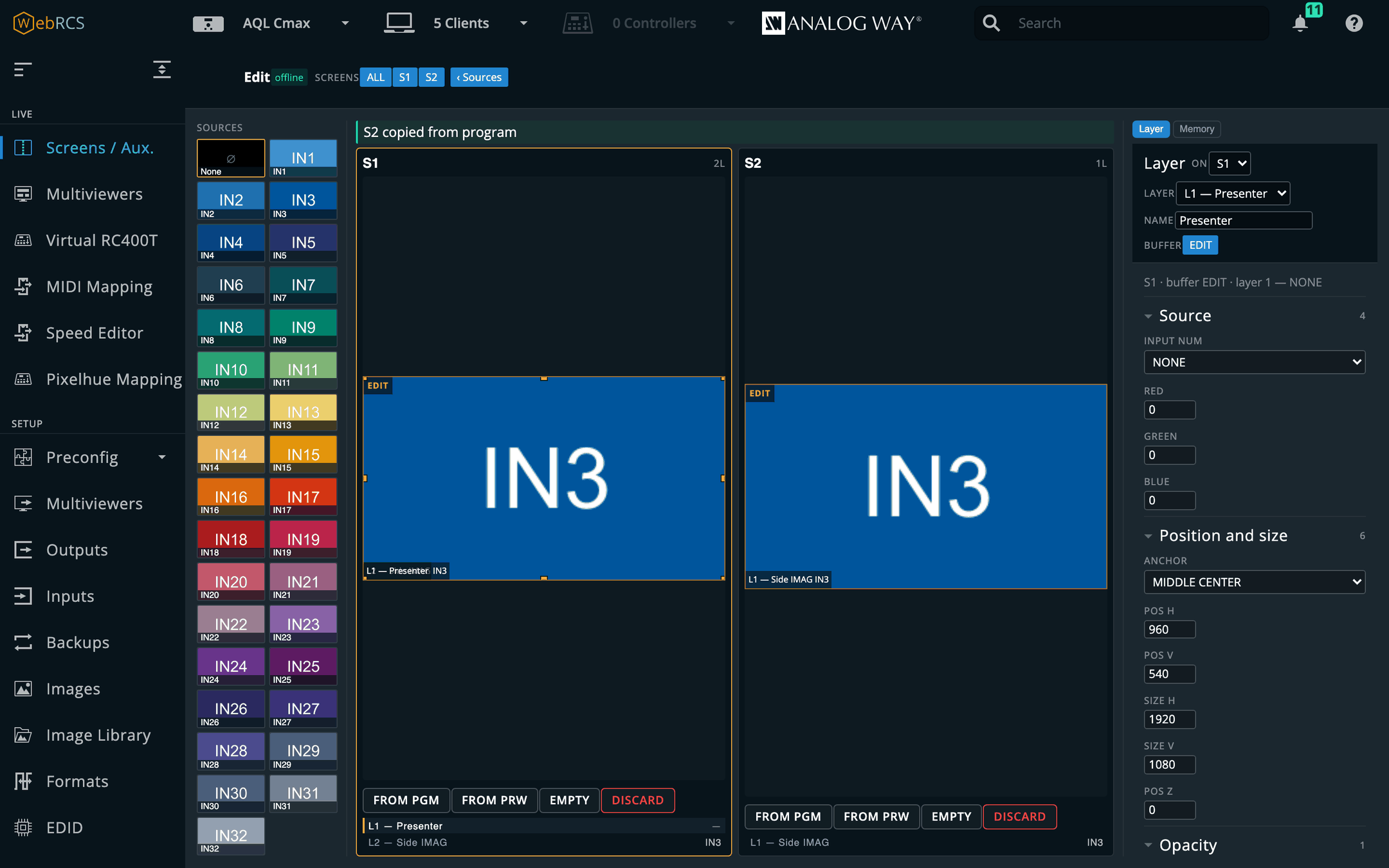
- Edit — the Screens / Aux. page with one row instead of two, and that row is a programmer: a buffer that is on neither preview nor program. Build a look with the same sources, the same layer parameters and the same memory bank, and the switcher sees none of it until you save it into a memory.
- VPU Map — the device’s mixing-resource allocation, drawn as a budget: which units are fitted, who holds them, what is spare, and what a staged preconfig would change.
- Console — a lighting-desk command grammar for a video switcher, which also takes raw AWJ, store writes and OSC addresses — and, on a Midra 4K or Alta 4K, routes audio.
- Timeline — a theatre-style cue stack that advances on one GO, with per-cue fade, delay and follow times — and cues that fire from MIDI Time Code, LTC or a pushed timecode.
- Memories — every memory bank in one searchable list, showing which buffer holds each one.
- Layer — all 67 of a layer’s properties, from the switcher’s own catalogue; and names for layers, which the switcher has nowhere to keep.
- Layer Groups — several layers, on one screen or on many, driven as one; a ganged group follows a source change made to any member, wherever it came from.
- Send to — a
…on every source card that routes it to a screen and layer, or to a whole group, in preview or program, without a drag. - Matrix Routing — patch the frame’s own SDI and HDMI sockets to ports on a Blackmagic Videohub, a Lightware or a Turtle AV router, and route through it from the panel, a cue, the Console or OSC.
- HyperDecks — Blackmagic HyperDecks, and Mitti through its HyperDeck control, played, cued and recorded from the panel, a cue or OSC; linked to the input they feed, with rules that play a deck when it goes on air, load its next clip when it comes off, and take when its clip ends.
- Companion — a Bitfocus Companion linked to this app: its buttons drawn and pressable here, a Companion trigger on cues and memory recalls, its own editor on the same address as Web RCS, and a panel that knows which switcher you are on and offers to add the connections that belong in the show.
- EDID builder — EDIDs made beside the EDID bank and saved straight into it: one per custom format, automatically if you like, or by hand in the full Otter editor.
- Pitch Compensation — the H and V ratios a screen spanning LED walls of different pitches needs, worked out from the pitches you give it.
- OSC input — QLab, TouchOSC, a lighting desk or Companion driving the switcher over UDP, with no browser open.
- MIDI Mapping — a control surface driving the switcher, from the page itself.
- Speed Editor (preview) — a DaVinci Resolve Speed Editor as a switcher panel, plugged into the machine this app runs on: CAM 1–9 pick sources, CUT and DIS cut and take, and the wheel moves opacity, position and size. Any browser, with DaVinci Resolve quit.
- Pixelhue panel (preview) — a Pixelhue U5, U5 Pro or U5 mini driving the switcher, with Pixelhue Mapping to give any key, fader or encoder a different job.
- Your setup in one file — cue stack, groups, layer names, router patch and settings, saved and restored together.
- Arithmetic in the vendor’s own numeric fields — type
1080-80into a layer width and get 1000.
Every one of these is a plugin: any of them can be switched off, and you can add your own — see Switching features off.
The panels ride the vendor app’s own WebSocket. No second Web RCS connection to the device, no replacement UI, and nothing to install in the browser. OSC input, the Pixelhue panel and the Edit page’s direct save each open a brief AWJ connection of their own when they act — worth knowing, because the switcher allows five AWJ clients at once.
Before you rely on this: the panels render inside a real Web RCS session and the device store mirrors live — verified through this proxy against LivePremier Simulator 6.2.73, along with cue-stack persistence and the whole setup flow. The VPU map has been read from a live Aquilon C and is tested against that capture, including Optimized mode, interleaved output links, and a staged preconfig differing from the running one.
Midra 4K and Alta 4K (QuickVu, Pulse, Eikos, QuickMatrix, Zenith 100/200) are supported since 0.6.0 — Timeline, Console, Memories, Layer and Pitch Compensation; there is no VPU to map on those and MIDI Mapping is not offered there yet. The port was proven on a live Pulse 4K: every write over the device protocol by a test harness, and the Console panel’s own lines typed by the operator — the first writes this app’s panels have made to real hardware. On LivePremier, nothing has been written to a physical device yet and the timeline has only ever fired at a simulator.
The Edit page and Companion (0.10.0, 0.11.0) have been proven on simulators and a running Companion 5.0.5, not on a physical switcher. Two of their limits are worth knowing now: the Edit page’s direct save hands the switcher a file path that the switcher resolves, so it is unproven on real hardware — its via preview route works anywhere — and Companion cannot add the LivePremier Plus connection until a Companion module for this app exists. The Pixelhue panel has never met a console at all.
0.13.0 rebuilt every feature as a plugin. Each was checked against the simulator and a Videohub emulator as it moved; what each one does did not change. A plugin of your own runs with the same access to the switcher as the app itself, so switch on only what you trust.
0.14.0 adds the Thumbnail relay and placeholder routers, both proven on the simulator only. The relay is off until you switch it on.
0.15.0 adds Layer Lock, HyperDecks, the EDID builder, Mosaic inputs, Pixelhue Mapping and the Speed Editor, all proven on the simulator (and emulated decks and panels) only — none has met real hardware yet.
0.16.0 adds Audio Matrix, Remote access and Multiviewer thumbnails, and the Speed Editor works on a real panel — through the app’s new device host, over USB. Audio Matrix and Multiviewer thumbnails are proven on the simulator only.
Built with AI assistance, directed and reviewed by a human author.
Running it
Needs Node 20 or newer and has no dependencies to install.
npm startThen open http://127.0.0.1:8535/ and give it the switcher’s address. That address is remembered.
npm start -- --device 192.168.2.142| flag | meaning |
|---|---|
--device <host[:port]> |
the switcher. Port defaults to 80 (a simulator is usually :3000). |
--port <n> |
local port to listen on (default 8535) |
--host <addr> |
local address to bind (default 127.0.0.1). Bind a LAN address or 0.0.0.0 to reach it from other machines. On the machine running it, keep using http://127.0.0.1:<port>/ — that is the address browsers treat as secure, which MIDI Mapping and the timecode sources need; a local browser that arrives by the LAN address is sent there automatically. Other machines get everything except those. |
--data <dir> |
where cue stacks are kept |
There is a desktop app too — a tray launcher with an interface and port picker.
In Docker
An image is published to ghcr.io/stoatworks-labs/livepremier-plus on every change to the main
branch. :latest is the newest of those, which can be ahead of the last release; each image is
also tagged with its commit, so a release can be pinned by the commit its tag points at.
docker run -d -p 127.0.0.1:8535:8535 -v "$PWD/config:/config" \
  ghcr.io/stoatworks-labs/livepremier-plus:latest
The repo’s docker-compose.yml does the same with docker compose up -d, but it publishes the
port on every interface of the host — change 8535:8535 to 127.0.0.1:8535:8535 unless the whole
network is meant to reach it (see On binding wide below). ./config keeps your cue stacks and the
remembered switcher; set LPP_DEVICE to skip the setup page.
On binding wide. The default is loopback for a reason: this proxy is an unauthenticated route to a switcher’s entire control surface — and, once a Companion is linked, to that Companion’s admin UI too.
--host 0.0.0.0hands that to everyone on the network. Do it deliberately, not by habit.
Open it through the proxy, not at the switcher
If you open the switcher’s own address directly, the panels are not there and MIDI will not
work. Web MIDI is a secure-context API; http://127.0.0.1:<port> counts as one and a plain-HTTP
LAN address does not. The panel says so rather than failing silently.
Edit — programming a look off the buses
PLUS ▸ Edit. The Screens / Aux. page, with one row per destination instead of two. Sources on the left, the destinations in the middle, the layer panel on the right — the vendor’s own layout, so everything is where you already look for it. The difference is the row: it is marked EDIT in amber rather than PGM in red or PRW in green, because it is on neither bus.
Nothing you do here reaches the switcher. There is no TAKE, no T-bar and no padlock, because there is nothing to transition and nothing to protect.
Building a look
Each card starts empty. Three ways to fill it, and none of them asks the device for anything:
| From PGM | copy what is on air into the programmer |
| From PRW | copy what is cued |
| Empty | every layer full-frame with no source, which is what an untouched preset looks like |
Then work the way you would on the real page:
- click a layer on the card, or a row in the strip beneath it, to select it;
- drag it to move, or take one of the eight handles to resize — the numbers land in the Layer panel as you go, clamped to the switcher’s own limits;
- click a source on the left to put it on the selected layer;
- Layer on the right is the full parameter set — all sixty-seven of them, the same panel the vendor’s tab strip carries, pointed at the programmer.
Discard forgets a destination’s buffer entirely; Empty keeps it and clears it.
Saving it into a memory
The Memory tab is the one control on this page that touches the switcher. Name a slot, give it a label, and choose a route:
- Direct — writes the memory bank itself. No preset buffer is written and no take is fired, so neither preview nor program moves. This needs the switcher to be able to read a file this app writes, which it can when both are on the same machine — a simulator, or an installation where the Shared directory under Saving memories from the Edit page (Preconfig ▸ LivePremier Plus) points at a share they both see.
- Via preview — puts the look into the preview buffer, fires the switcher’s own save, then puts preview back property-for-property. Program never moves. Preview shows the look for about a second, and afterwards the bank will call it modified even though the content is identical — the switcher is right that the buffer was written to. Refused while a take is in flight. This route works on any switcher, and it is the only one on Midra 4K and Alta 4K.
Load into the programmer reads a slot back the other way. A memory’s contents are not in the device’s own data — a slot only publishes its name, its canvas and what categories it holds — so reading it out is the only way to see inside one, and it is how you pick up yesterday’s look and change it.
VPU Map
PLUS ▸ VPU Map. A LivePremier configuration either fits the mixing resources the chassis has or it does not, and the switcher’s own interface only tells you which by refusing it. This draws the budget instead: which VPUs are fitted, which screen holds which mixers, and what is spare.
Each VPU is drawn the way Analog Way’s own manual draws one — an 8 × 8 field of links, layer links coming in from the left, output links running down from the top — so the picture matches the documentation you already have:
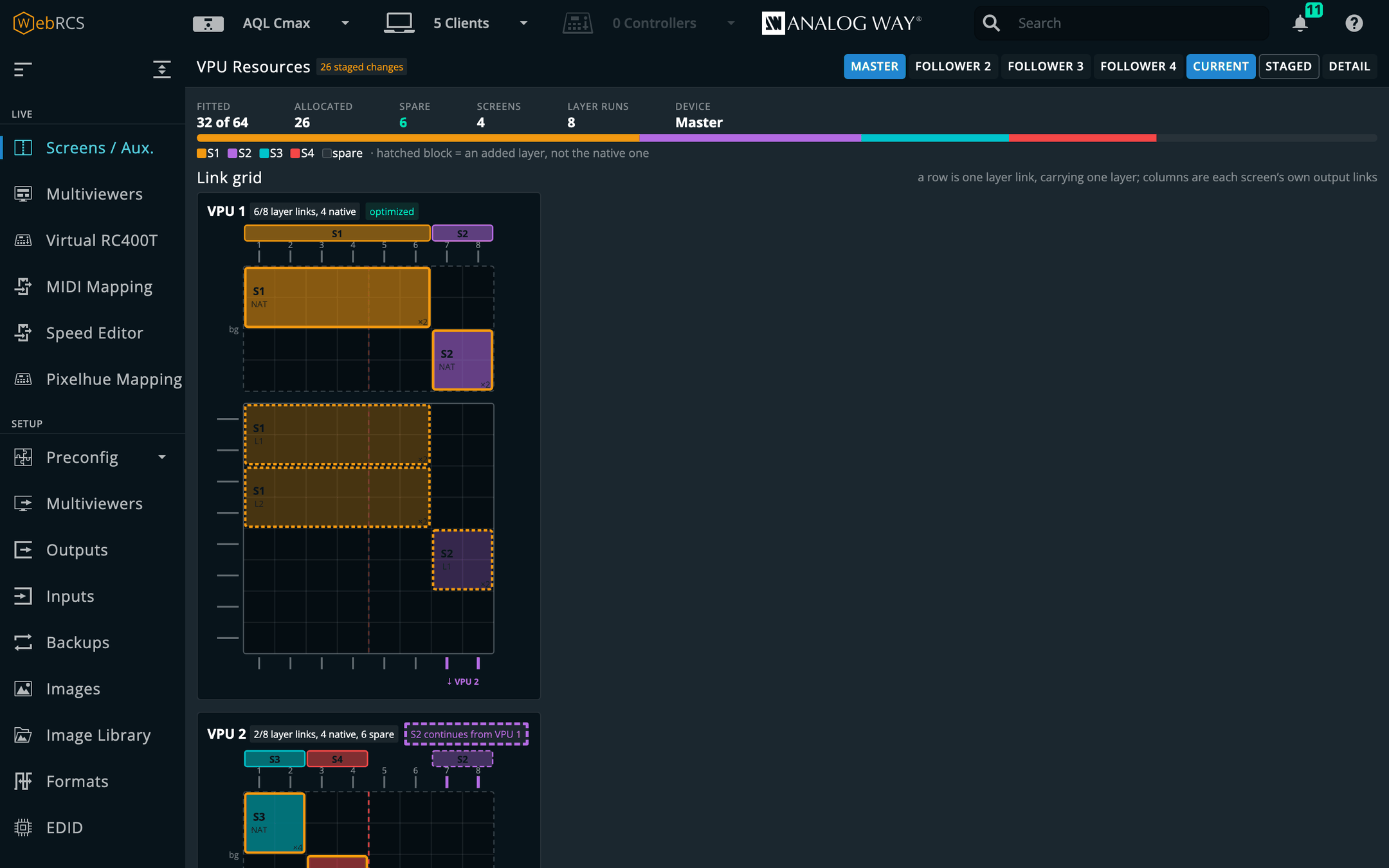
- Native layers sit in a band above the field, because a native is the bottom of the stack.
- A screen that ran out of mixers and continued onto another VPU has the two cards stacked, with the link drawn straight down out of one and into the next.
- The header over the columns names each link’s screen, and its region and output plug where the switcher’s own output figures add up.
Current and Staged switch between the running configuration and the one waiting in Preconfig, and a count says how many changes applying it would make — including a layer moving onto different links with every other value identical, which is still a change.
It only reads. Nothing on this page writes to the switcher. It is LivePremier only: a Midra 4K or Alta 4K has fixed processing rather than allocated mixers, so there is no budget to draw and the entry is not there.
Console
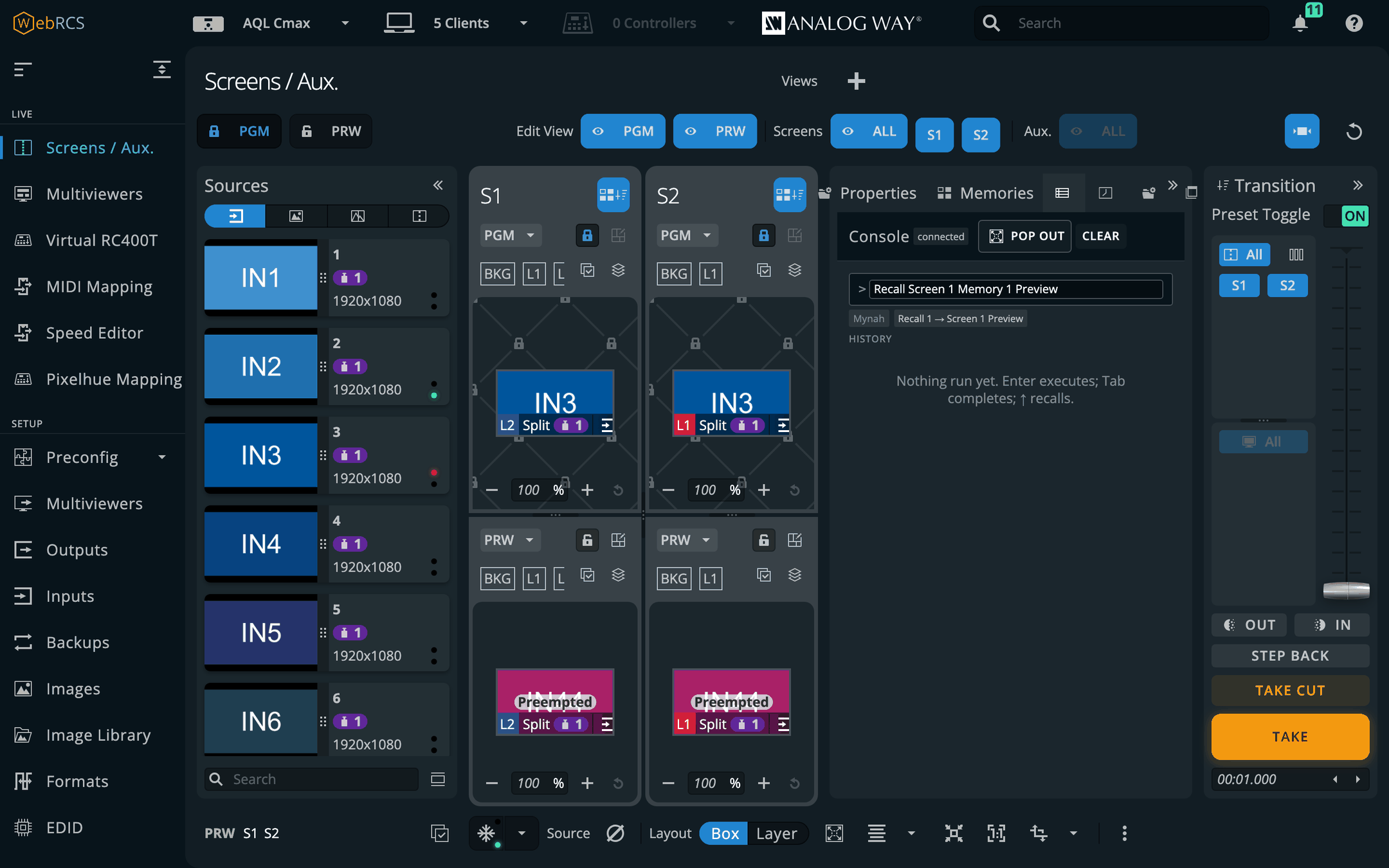
Verb first, then objects, innermost scope last. Every keyword abbreviates to any unambiguous prefix; Enter executes and nothing is sent before it.
Recall Screen 1 Memory 5
R Sc 1 Th 4 Me 5 Pre          the same command
Store Master 12
Take Screen 1
The line parses as you type and shows what it will do — Recall 3 → Screen 1 Preview — before
anything reaches the device. Tab completes; ↑ recalls history.
This panel owns no grammar. Every token, rule and device path comes from mynah’s own build output — the same artefact its Companion module vendors. If a command means the wrong thing, the fix is in mynah.
That is worth more than tidiness: mynah’s compiler and this repo’s command builder were arrived at independently, and they emit byte-identical store paths for the commands both know. Two independent derivations agreeing is the strongest evidence either is right, and it stays true only while nobody re-types the grammar here.
Timeline
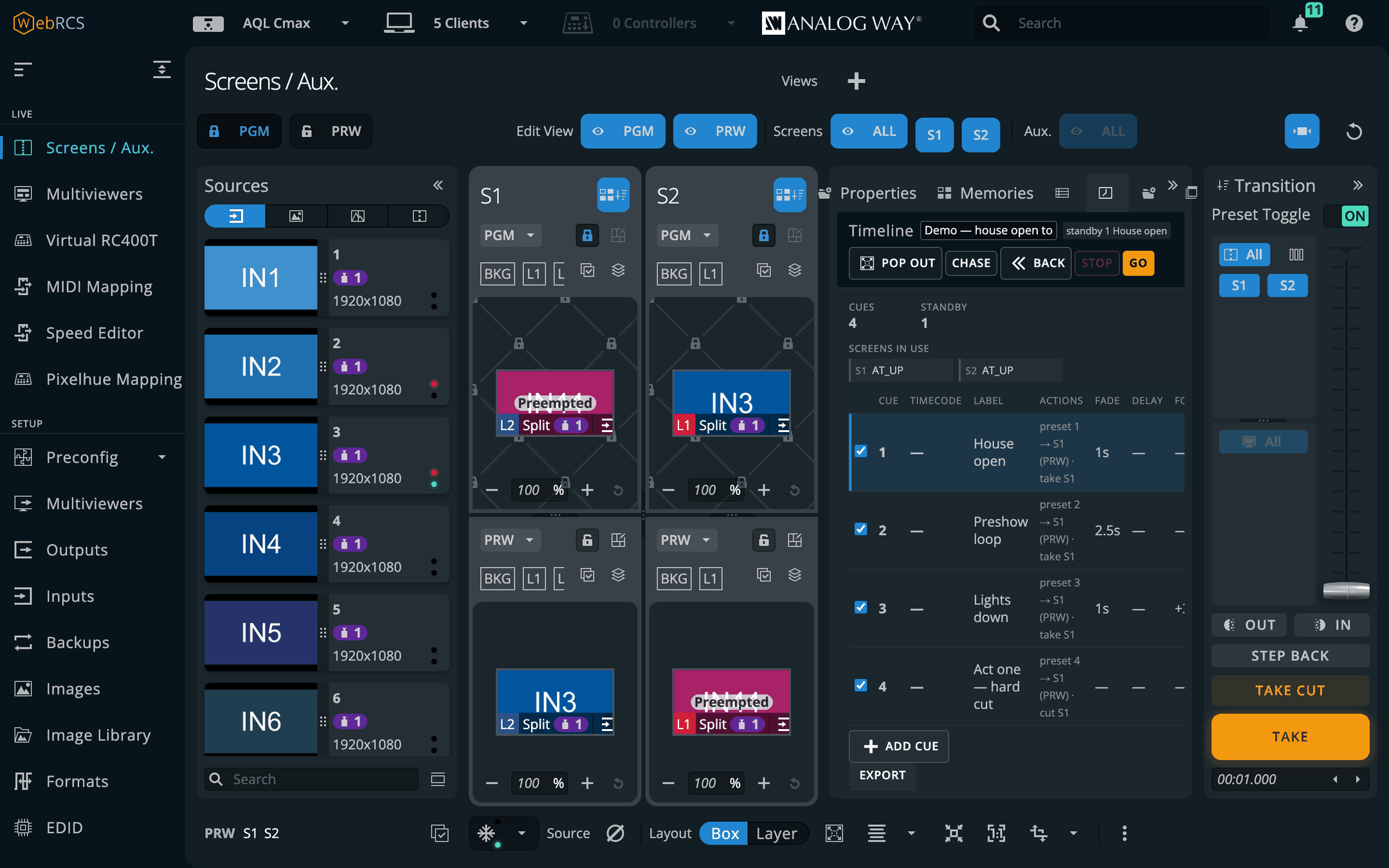
Screens / Aux. ▸ Timeline. A lighting desk’s cue stack, driving a switcher: a numbered list that advances on one GO, where each cue recalls memories onto screens and takes them.
Each cue can carry:
| fade | its own transition time, written to the screen before the take |
| delay | wait this long after GO before firing — a second GO during the wait fires it at once |
| follow | after this cue fires, fire the next one by itself, after a follow time you set |
| timecode | fire when incoming timecode passes this point (below) |
| Companion trigger | press these Companion buttons as the cue fires — see Companion below |
A few things behave the way a desk does rather than the way a switcher does:
- GO fires the standby cue, then advances. BACK moves the pointer only.
- The switcher’s own STEP BACK is a separate, clearly-labelled button, because it restores the device’s previous state rather than replaying a cue, and the two differ as soon as a cue does more than recall and take.
- A cue is sent, never confirmed. The switcher answers recalls and takes with silence, so the log says what left this app and the device status is shown separately.
The editor pops out into a window of its own — useful on a second monitor while the stack runs.
Firing cues from timecode
Choose a source under Preconfig ▸ LivePremier Plus → Timecode:
- MIDI Time Code from any MIDI input the browser can see;
- Audio (LTC) from an audio input on this machine;
- Pushed to LivePremier Plus — anything that can POST a timecode to this app: a generator on another machine, a lighting desk, a script.
A cue fires once per pass, not on every reading. Going backwards re-arms it, so the same scene can be rehearsed twenty times. Jumping forward does not run everything it skipped — the cues in between are marked done, silently, and the show carries on from the new position, rather than firing a hundred takes in a second.
Memories
PLUS ▸ Memories. Every memory bank in one list: master, screen and layer on a LivePremier; master, screen and aux on a Midra 4K or Alta 4K. Search by name, rename in place, and see which preset buffer is holding each memory right now — and whether it is still unmodified.
- A recall names its target every time. Pick PRW or PGM before you recall; there is no default, and program is coloured like the risk it is.
- Save and erase do what the vendor’s own buttons do, and the page says which save filters the switcher will apply before you press it.
- It pops out onto a second monitor, which the vendor’s own Memories tab cannot do.
Layer
Screens / Aux. ▸ Layer. Every one of a layer’s 67 properties — source, position, size, opacity, cropping, border, transitions, effects, masks and keying — generated from the switcher’s own parameter catalogue, so a firmware that adds a property grows a field for it.
You name the destination, the buffer and the layer outright, rather than the panel following what you clicked: that is React state inside the vendor’s page and cannot be read, and on a second monitor a panel that stays where you pointed it turns out to be the better behaviour anyway.
- The buffer is shown resolved: PRW means “whichever letter is preview right now”, and the panel says which letter that is. A buffer that is on air is banded in red.
- Mid-take, it refuses to write to PRW or PGM, because neither names a buffer honestly while a transition is running. A literal letter still works.
- It pops out into its own window.
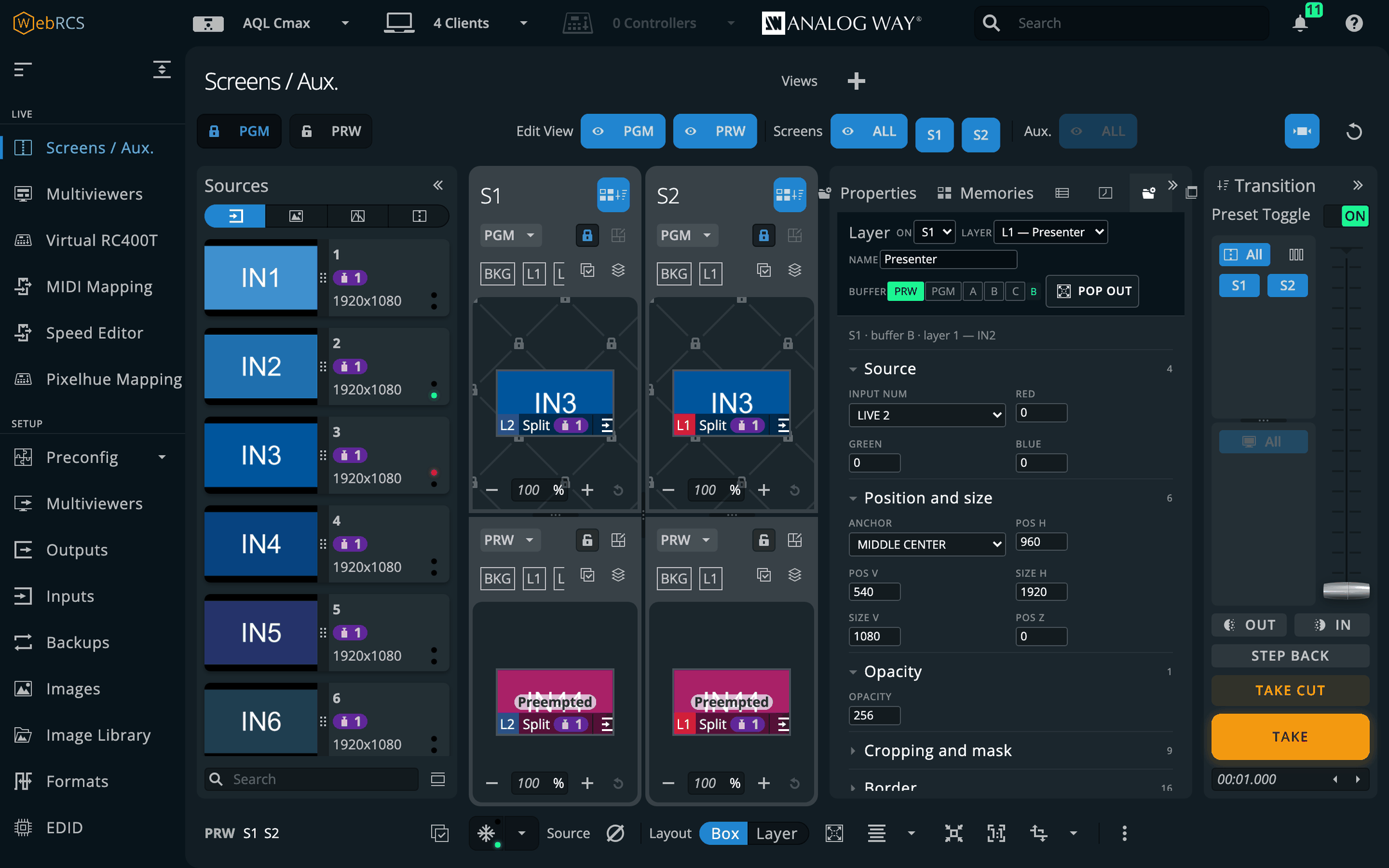
Naming a layer
Type a name into Name and it appears everywhere a layer is listed — this panel, the groups, the
… menu, and the vendor’s own layer lists. The switcher has no field for a layer name, so this
app keeps it, per switcher; anything that talks to the switcher directly will not see it.
Layer Groups, and the … on a source card
PLUS ▸ Layer Groups. A group is a name and a list of layers, on one screen or on several — layer 2 on screen 1 with layer 1 on screens 2 and 3 is the side screens. Add a layer with the destination and layer pickers at the bottom of each group card; the layer list is the device’s own fitted list, so a slot the hardware has not got is never offered.
The two source columns beside each member show what it is showing now, in program and in preview, so a glance says whether the group agrees.
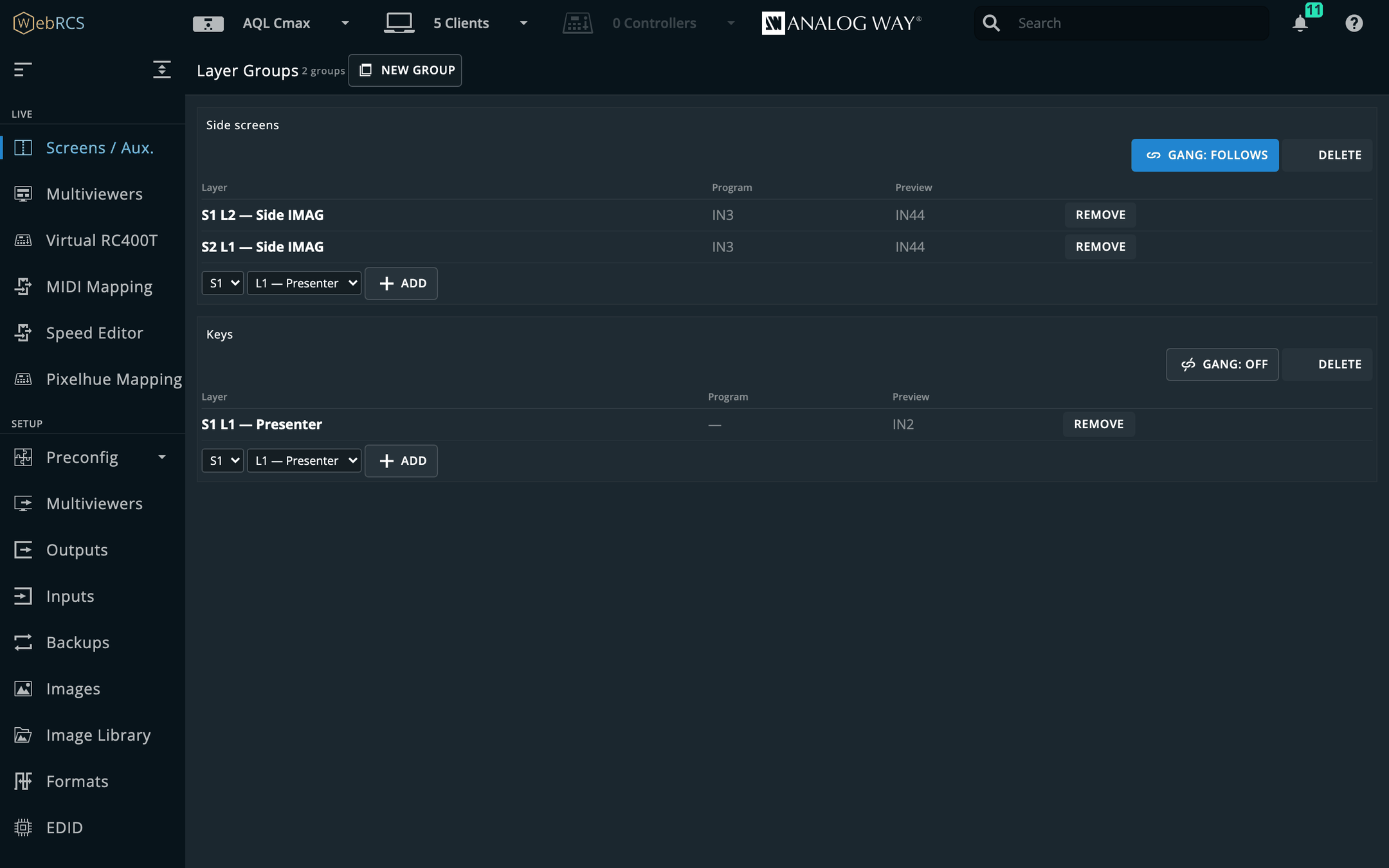
Gang: follows is on by default. The rest of the group is written to match whenever any member’s
source changes — by the … menu, by the vendor’s own drag-and-drop, by a memory recall, by another
client. Turn it off and the group stays useful as a target and does nothing on its own.
A layer belongs to one group at a time; adding it somewhere takes it out of where it was, and the panel says so.
Sending an input
Every source card in the Sources panel gets a … beside the vendor’s own ⋮. The ⋮ is
theirs and opens that input’s settings; the … is ours and routes it.
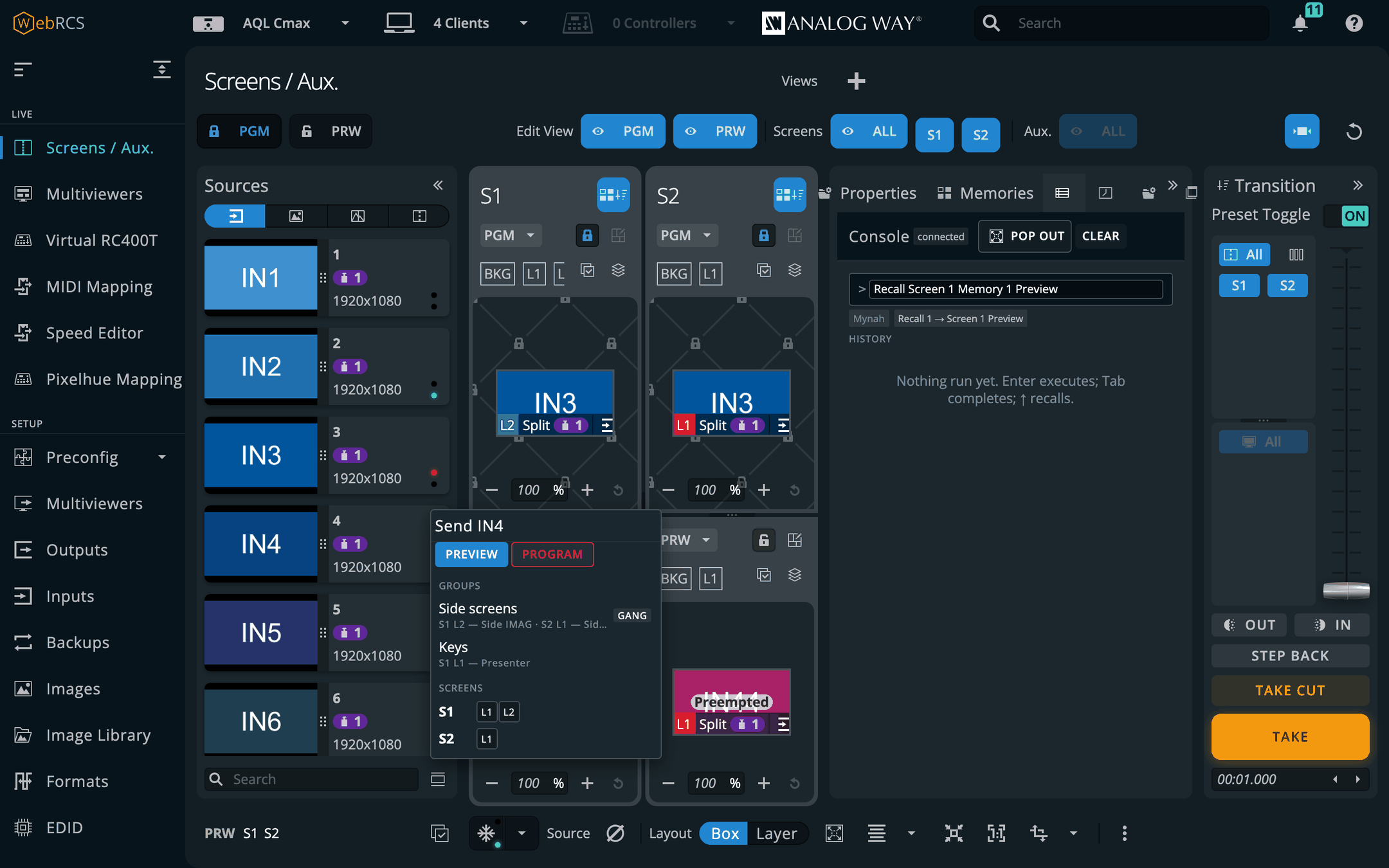
Preview and program mean the role, resolved per screen at the moment you click. Two screens sitting on opposite preset letters — which is normal — still both get it in the right buffer.
The PGM padlock is respected. With program unlocked on the screens involved, a program send goes through on one click. With it locked, you get a step naming every layer it is about to change and asking. A screen you have not got on the page has no padlock to read, so it is treated as locked and asked about too.
Mid-take nothing is sent. While a transition is in flight, “program” and “preview” do not name a buffer honestly, and the menu says so rather than guessing.
Groups are kept per switcher, beside the cue stack. Point the app at a different frame and you get that frame’s groups.
Layer Lock — a take that leaves a layer alone
PLUS ▸ Layer Lock. One card per screen or aux, one row per fitted layer, each with Lock and Take only. When Layer Groups is on, each group gets the same two buttons at the top.
The switcher has no per-layer take: TAKE swaps the whole program and preview buffers. What this uses instead is that a layer that is the same in program and preview has nothing to transition.
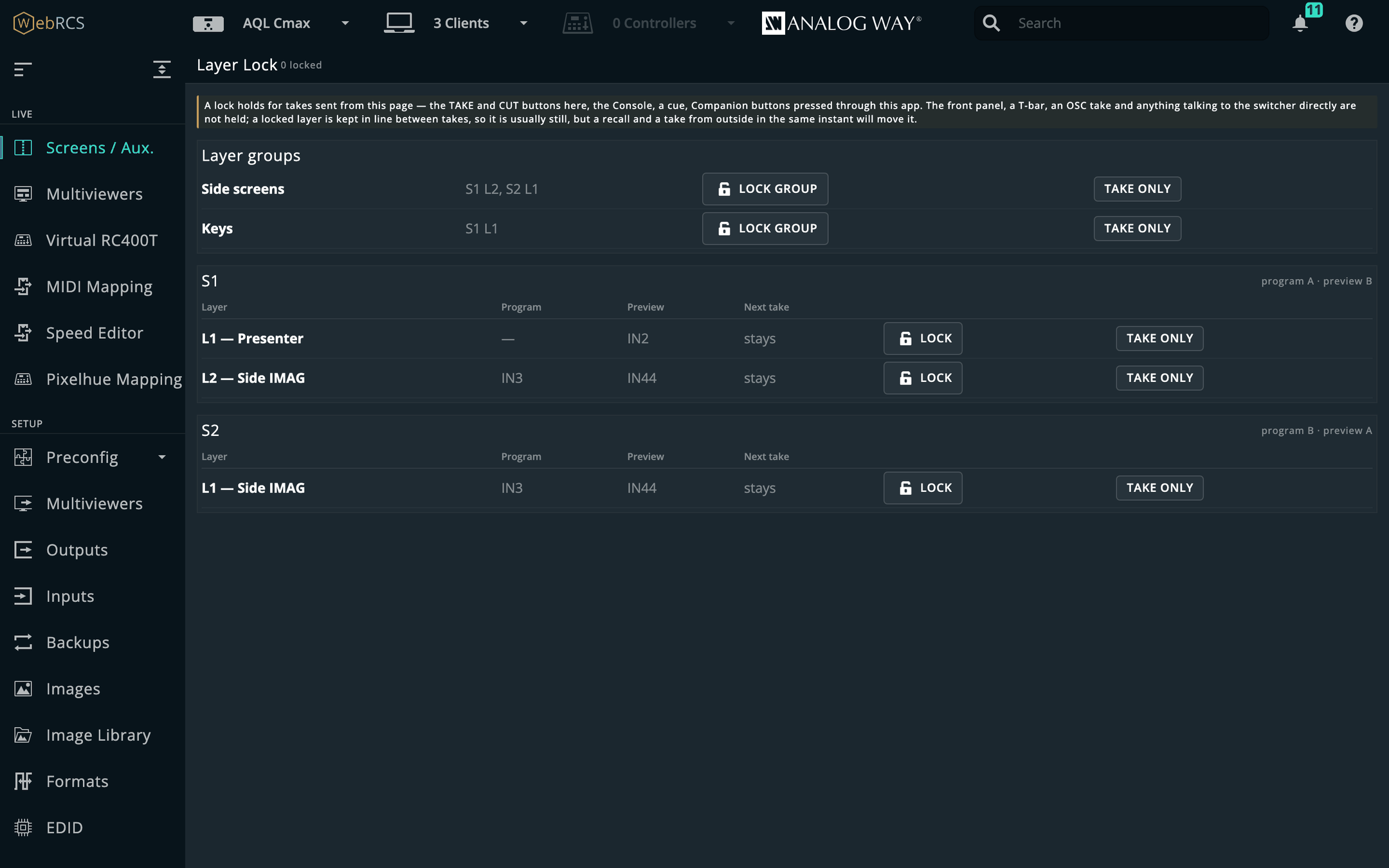
- Lock keeps the layer’s preview copy equal to its program copy. Change it in preview — the vendor’s properties, a memory recall — and it is put straight back; change it on program and preview follows. Every TAKE and CUT sent from this page, the vendor’s own buttons included, is held for the few milliseconds it takes to line a locked layer up if it has drifted, then sent. Locks are kept per switcher and survive a reload.
- Take only takes that layer (or that group, on each of its screens) alone: every other layer on the screen is set equal to program, the take is sent, and once it has landed the other layers’ preview looks are put back into what is now preview. A locked layer cannot be taken this way — unlock it first.
Next take is the switcher’s own word for what each layer will do on the next take — stays, opens, closes, crosses, flies. On a real frame, stays beside a locked layer is the switcher agreeing. A simulator says stays for every layer whatever the buffers hold.
⚠️ Only takes sent from this page are held. The front panel, a T-bar, an OSC take, a Companion button speaking AWJ straight to the switcher and another operator’s browser go straight to the switcher. Between takes a locked layer is kept in line, so it usually stays put anyway — but a recall and a take from outside in the same instant will move it. The panel says this at the top every time.
⚠️ Proven on the simulator only. No real frame has yet been asked what it does with a locked layer that has a live source on it. The first time you use this on a frame, lock a layer in rehearsal, take, and watch it.
Matrix Routing
PLUS ▸ Matrix Routing. Patch the switcher’s own sockets to ports on an external router — a Blackmagic Videohub, a Lightware, or a Turtle AV — and route through it from here.
You describe the cable, and the rest follows. The direction inverts, which is the thing that reads wrong at first glance every time:
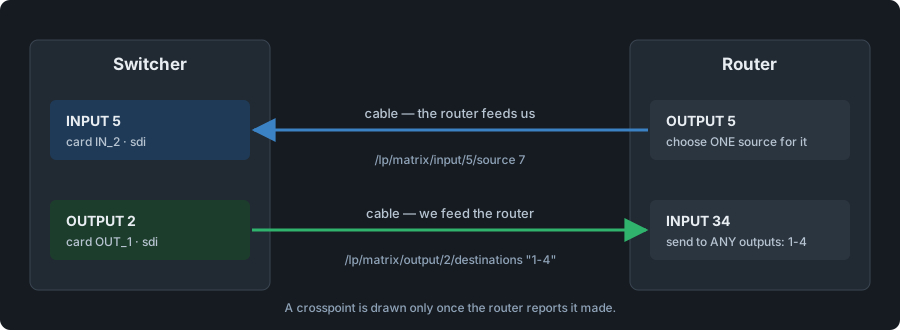
So a switcher input is fed by a router output, and a switcher output arrives at a router input. The patch form says which of the two it wants as you fill it in.
Set it up in three steps. Add the router (name, protocol, address — the port follows the protocol’s own default). Patch each cable: pick a socket, pick the router, give the port number at the other end. Then route.
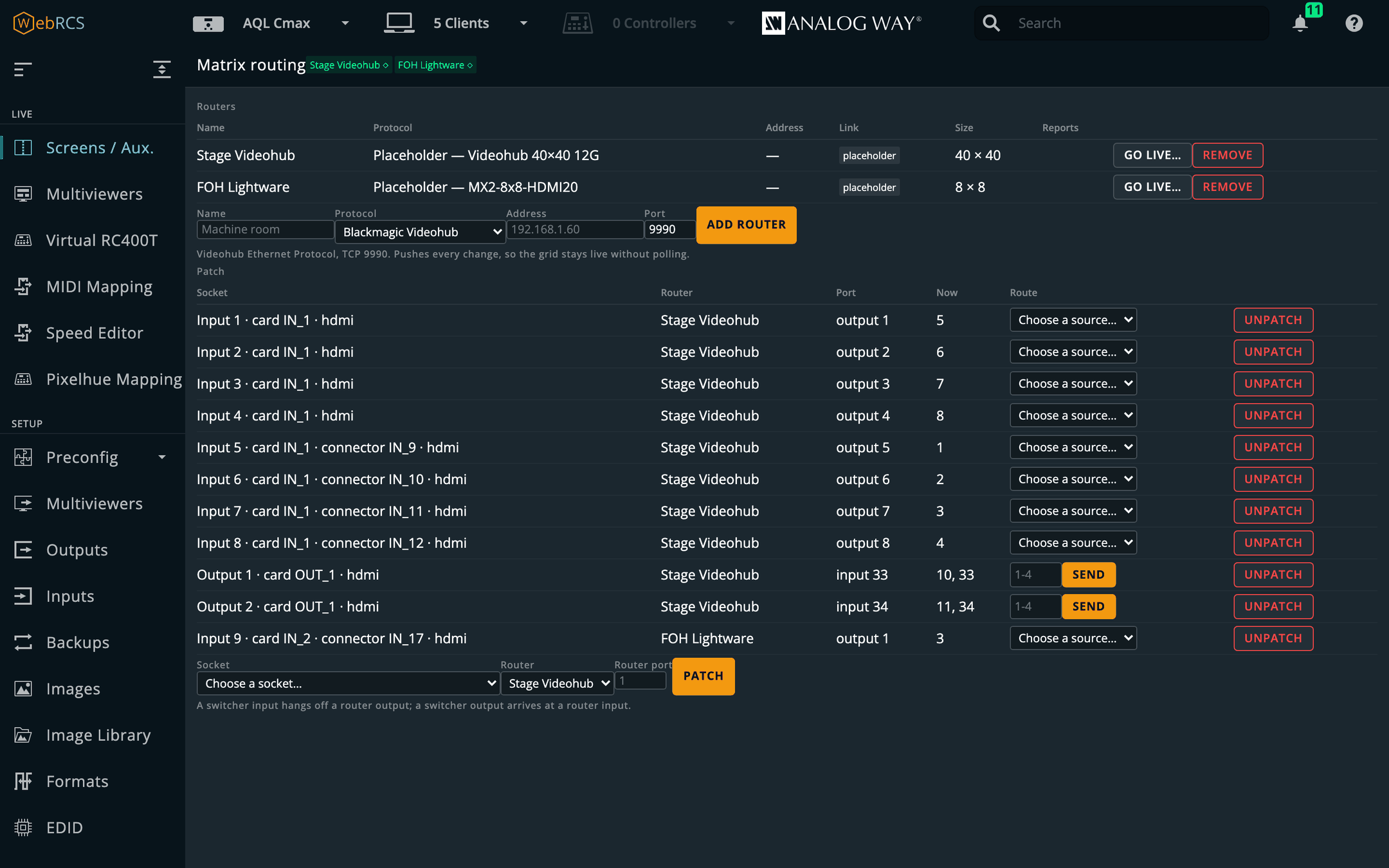
Sockets are named in the device’s own words, because which connector “card 2, port 1” is depends on a legend this app cannot see:
Input 13 · card IN_2 · connector IN_25 · sdi
Output 5 · card OUT_2 · hdmi
The two route controls are different, and deliberately so. An input row gets a source
dropdown — one choice, because a socket is fed by one router output, and it settles what that input
sees. An output row gets a destination field, because the signal arrives at one router input and
can go to any number of outputs at once: type 3, or 1-4, or 1,2,5-8.
⚠️ Sending adds; it never takes away. Naming outputs 1-4 routes those four and leaves output 5 alone, even if it was showing this source a moment ago. A router output always shows something, so “removing” a destination would mean choosing a different source for it — and there is no answer to which one.
The Now column is what the router says, not what you asked for. A click does not move the grid until the router agrees, and it keeps up with changes made at the router’s own front panel or by another operator. A Videohub answers a route it will not make with an acknowledgement and the unchanged crosspoints, so a panel that showed your request back to you would look right and be wrong — during exactly the minute that matters.
Placeholder routers — building before the rack
A router you have not got yet can still be patched and routed. Add it with Protocol ▸ Placeholder (no hardware) and pick its Model — Videohub, Lightware MX2 or MX-FR, Turtle AV, or a custom size — and it behaves like the real one everywhere: the panel, the Router tabs, cues, OSC and the Console all route through it. Nothing is on the other end; its crosspoints are kept here as the router’s plan.
When the rack arrives, Go live… gives it an address. The patch carries over, nothing is sent on connect, and Push plan sends only the crosspoints that differ. A planned port past the real frame’s size is named, not dropped.
On the input and output pages
You do not have to leave the socket you are working on. Inputs ▸ an input and Outputs ▸ an output carry a Router tab beside Signal, Aspect and the rest, and Preconfig ▸ Inputs / Outputs shows a Router box under the selected card’s own boxes.
Each says which router port the cable is on — and if it is not patched yet, patch it right there — then shows the router’s ports twice: as a grid of tiles and as a list with the router’s own port names.
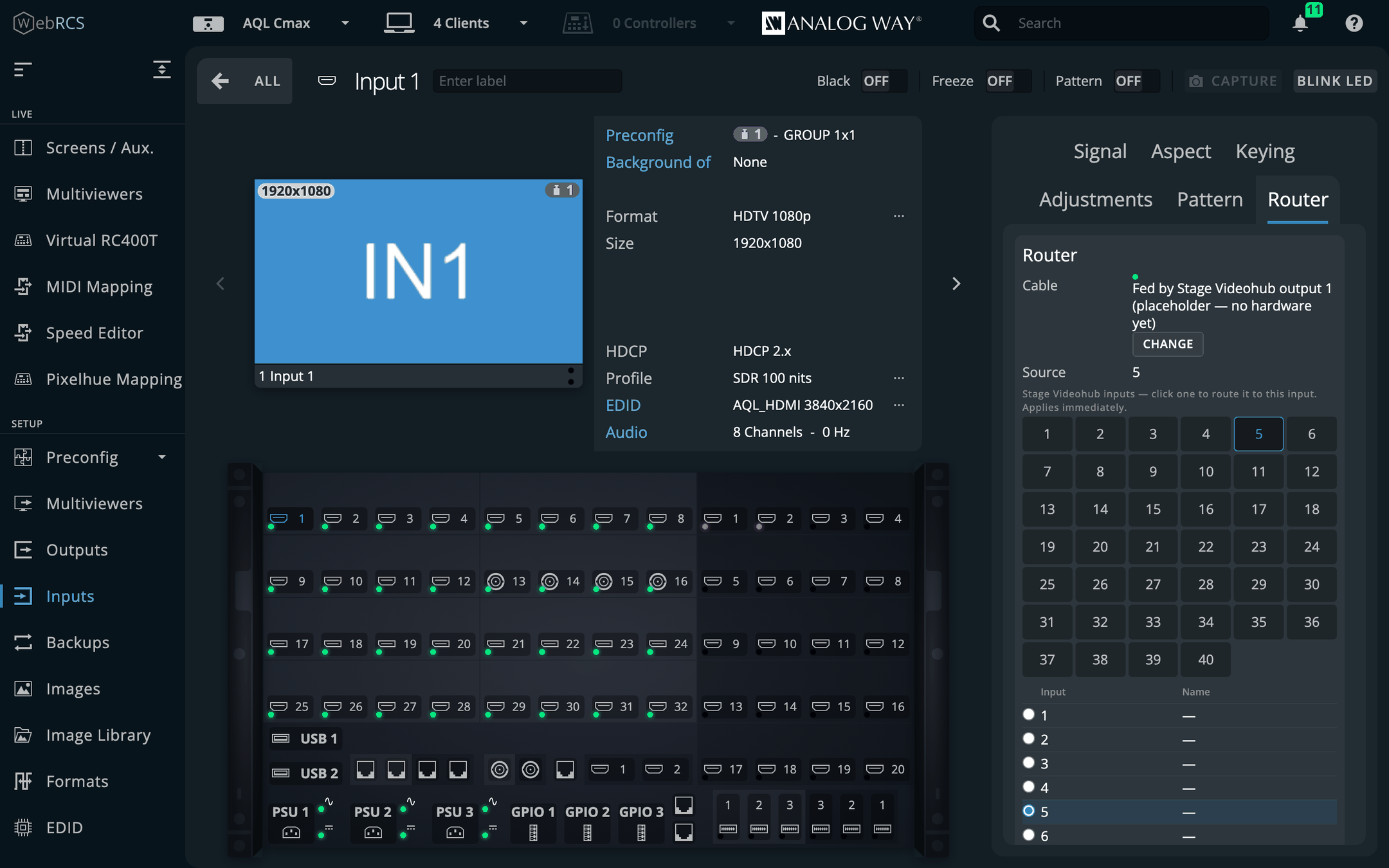
- An input picks one source. Click a tile or a row and it routes at once.
- An output picks any number of destinations. Clicking builds a selection (a dashed outline), and Route sends it. A solid blue tile is one the router already has on this output; the list shows what every other destination is showing now, which is what a route there would replace.
⚠️ In Preconfig this is live, not part of Apply. The route goes to the router straight away; Apply only concerns the switcher.
From a cue, the Console and OSC
A cue can carry a matrix route beside its recalls and takes. It goes out ahead of the take, so the signal is there before anything switches to it.
⚠️ A cue does not wait for the signal to lock. An SDI reclock is quick; an HDMI or HDCP handshake through a router can take a second or more, and nothing reports when it is done. A cue that routes and takes in one breath can take to black — put the route in an earlier cue when the format may change.
The same three addresses work typed at the Console and sent over OSC:
/lp/matrix/input/5/source        7        switcher input 5 now sees router input 7
/lp/matrix/output/2/destinations "1-4"    switcher output 2 out of router outputs 1-4
/lp/matrix/hub/route/3           9        router "hub": output 3 takes input 9
The routers are kept for the installation, not per switcher — a Videohub does not move when you fail over to a backup frame. The patch is per switcher, beside the cue stack, because it describes that frame’s own sockets.
What has been proven, and what has not. The Videohub driver was driven end to end against a working implementation of the protocol, including the crosspoint numbering, which counts from zero on the wire and from one everywhere you can see. No real Videohub has been in the loop. The Lightware and Turtle AV drivers are written from their vendors’ protocol documents and have never spoken to the hardware at all.
docs/MATRIX.mdgives a short procedure for proving each on your own kit before a show.
HyperDecks
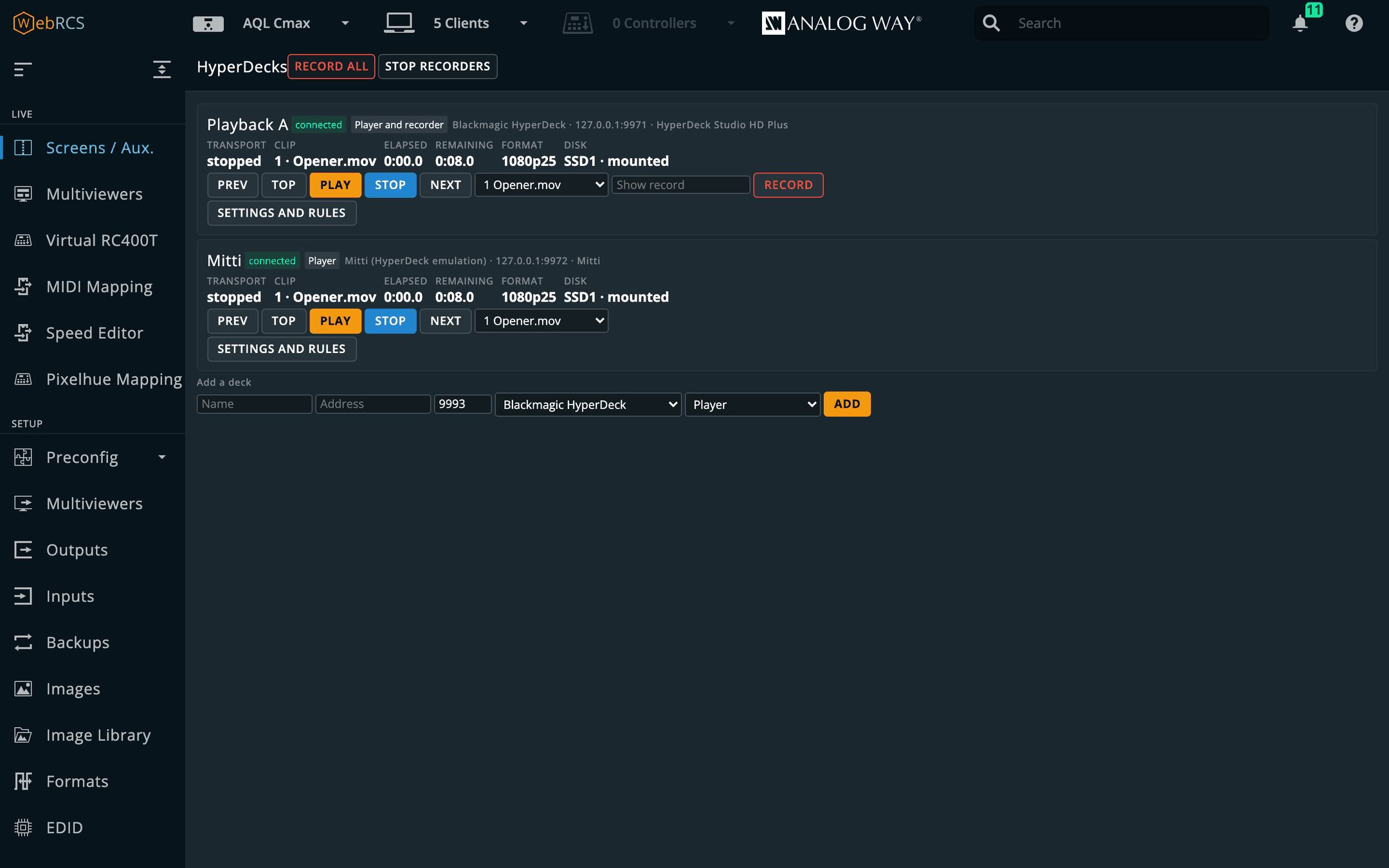
PLUS ▸ HyperDecks. Blackmagic HyperDecks — and anything that answers their protocol, Mitti included — played, cued and recorded from the switcher’s own UI, and made to follow the show.
-
Add a deck at the foot of the panel: a name, its address, port 9993, its kind (HyperDeck, Mitti, or other) and its role (player, recorder or both). For Mitti, switch HyperDeck control on in Mitti’s own preferences first.
-
Open Settings and rules on its card and pick the input it plays into — the plug on the back of the frame its output is cabled to. A recorder can name the output that feeds it.
-
Its card now shows what the deck is doing — clip, elapsed, remaining, ON AIR / PVW — and drives it: Prev, Top, Play, Stop, Next, a clip to cue, and Record on a recorder. Record all and Stop recorders are in the toolbar.
-
Tick Follow the switcher and choose what happens when its input is put on program (play), put in preview (rewind), taken off (pause, rewind or load the next clip), and when a clip ends (take or cut the screens it is on air on, optionally a few seconds early so the mix lands on the last frame). Tick screens to narrow it; none means all.
The rules run in an open page. One page at a time runs them — the panel says which — and a page that starts running them acts only on what changes after, so opening one never plays a deck that is already on air. With no Web RCS page open, the buttons, cues and OSC still work, but nothing follows the switcher.
In a cue, the HyperDeck field takes VT 1 clip 3; VT 1 play; recorders record Act 1. Over OSC,
/hyperdeck/<deck>/play and the rest — docs/OSC.md.
⚠️ Written from Blackmagic’s published protocol and proven against an emulation of it — not yet against a real HyperDeck or Mitti.
docs/HYPERDECK.mdhas a short procedure for proving it on your own deck before a show.
Companion
PLUS ▸ Companion. A Bitfocus Companion (5.0 or newer) linked to this app: its buttons drawn and pressable here, a cue or a memory recall that presses them, and its own editor served on the same address as Web RCS — no second port to allow through a firewall.
Connecting
Tick Connect to a Companion, give its address, and press Connect. The port is Companion’s own admin port — 8000 unless it has been changed in Companion’s settings. The link is off until you turn it on: an app that reached for a machine on the show network the moment it started would not be one you could reason about.
What is in the show
The panel lists the show’s connections — label, module and status — and follows them live, so a connection added or disabled in Companion (including in its editor, opened from here) shows up without a reload. The two it has an opinion about are highlighted:
- AWJ — the switcher itself: sources, presets, takes, layers.
- LivePremier Plus — this app: cue stack, timeline, layer groups, matrix routing.
What it does with them is an offer, never a sync:
- a connection already in the show is used as it is — its settings are left alone, whatever it is labelled;
- two of the same module is reported, not resolved — a show with a main and a backup frame is a correct show, and the panel will not pick one for you;
- a missing one is listed under Not in the show yet, with the address it would be pointed at, and Add … to the show creates it and configures it for the switcher you are on. Nothing is written until you press it.
The LivePremier Plus connection cannot be added yet. It needs a LivePremier Plus module in Companion, and there is not one yet — the panel says so in those words. The AWJ connection works today.
If you opened this app on 127.0.0.1, that is the address the LivePremier Plus connection would be given, and a Companion on another machine cannot dial it. The panel warns you; open this app by its network address first if Companion is somewhere else.
Buttons
The panel draws Companion’s pages as a grid, in this app’s own look: each button exactly as Companion renders it — text, colours, feedbacks, variables — and updated the moment it changes. Press one and it is pressed in Companion; hold it and it is held, so a long-press or a while held action behaves as it does under a finger. Pick the page from the list, or step through with ‹ and ›. Dim buttons have nothing on them.
- Pop out puts the grid in a window of its own, for a second monitor or a touch screen.
- Edit in Companion opens Companion’s own button editor in a new window, through this app, for programming a button. Everything you change there shows here at once.
The grid only runs while it is on screen: move to another panel and it stops asking Companion for images.
A cue that presses a button
Each cue has a Companion trigger field — in the cue editor (Timeline ▸ Pop out) and in the
Timeline tab’s New cue form. Type buttons as page/row/column, the way Companion numbers them
(1/0/3; several separated by commas), or press Choose… and click one in the grid — nothing is
pressed while choosing. When the cue fires, the buttons are pressed alongside its recalls and ahead
of its take, the same moment a matrix route goes out. An address that does not read is refused and
the field says why.
The press goes through this app’s own link, not the page: it works whether or not the Companion panel has been opened, and whether or not Companion’s HTTP API setting is on.
A memory recall that presses a button
Memory triggers, at the bottom of the panel: choose a bank and a slot, the buttons to press, and Set. From then on, recalling that memory presses them — from the Memories panel, a cue, the Console or the vendor’s own Memories tab. Test presses them now. One recall sent to several screens at once presses once.
Only recalls made in this page are seen. A memory recalled from the switcher’s front panel, from Companion itself, or from a browser not going through this app presses nothing — this app has no way to hear about it. That is also why two open pages do not press the button twice.
Triggers are kept per switcher, beside the cue stack, and travel in the setup file.
Linking a Companion widens what this app exposes. Everything below
/__lpp/companionis Companion’s admin UI, reachable by anyone who can reach this app. On the default loopback binding that is only this machine; see On binding wide above before you change that.
EDID builder
Setup ▸ EDID. The switcher keeps a hundred custom EDID slots — the EDID Bank tab, ED1 to ED100 — and has nowhere to make an EDID to put in them: it takes a file. This puts the Otter EDID editor beside the bank, so an EDID is built and saved without a file changing hands.
From your custom formats
From Formats is a third tab beside Default EDIDS and EDID Bank. It lists every valid custom format in Setup ▸ Formats (M1–M16) with an EDID already built for it:
- Every porch is kept. The EDID is built around the format’s exact timing, not re-derived from its resolution and rate. Where the raster is exactly a CTA-861 mode (1080p60 is VIC 16), the VIC goes in too, because consumer sources act on VICs; anything else is a detailed timing.
- Its name is the label you gave the format when it fits the EDID’s 13 characters, otherwise
M3 1080p50— it is what the bank card and every input show. - Save to ED… puts it in the next empty slot. Save N to the bank does every one that is missing.
Edit… opens it in the editor first. The download button saves the
.bin. - Keep the bank filled does it for you: whenever a format has no EDID in the bank, one is added to the next empty slot. It never overwrites a slot and never deletes one — a format you change leaves its old EDID where it was, because an input may be using it.
A format counts as in the bank when some slot’s EDID has the format as its preferred mode — so an EDID you opened from here, renamed and saved still counts, and the switch will not add a second copy beside it.
The rate can read 0.01 Hz low. An EDID states its pixel clock in 10 kHz steps, so a format whose clock falls between two steps comes back as the nearest: 3000x1000 at 50 Hz is 162.424 MHz, stored as 162.42, which the bank shows as 49.99Hz. Every porch is exact; it is the nearest rate an EDID can say.
Creating or editing one by hand
Create EDID…, at the end of the same row of tabs, opens the full editor in a window of its own. An edit tool on every filled bank card opens it on that slot. It is the same editor as the website: Simple (a resolution and a rate), Advanced (every field), Mosaic (one tiled EDID per plug, so a Mac bonds its outputs into one display), the signal cost, and which Analog Way, Barco and PixelHue inputs will take it.
Save to the switcher, at the top right, writes it: pick the slot — it starts on the first empty one, or on the slot you opened — and it says what it would replace before you press. A mosaic saves its tiles into that many slots in a row, as their exact bytes. The save finishes when the switcher reports the new EDID, not when it accepts the request.
The window works through the Web RCS tab it came from, like every popped-out panel here; close that tab and it says it can no longer save.
Pitch Compensation
Preconfig ▸ Pitch Compensation, beside the fields it fills in. A screen spanning LED walls of different pixel pitches needs each output told how much canvas its raster is worth, or a layer crossing the join changes physical size the instant it crosses. The switcher has the fields for it — Preconfig ▸ Canvas ▸ Pitch, H Ratio and V Ratio — and no help working out what to put in them.
It knows every number but one. The panel reads the rasters, the outputs on the screen and the
ratios already set, and asks you only for the pitches — one per output: 2.6, or 2.6 x 3.0 if the
pixels really are not square.
- A coarser wall takes a ratio above 1.000 — the ratio multiplies a raster to give its footprint on the canvas.
- A ratio the switcher would not accept is refused here rather than sent: the device discards an out-of-range write instead of clamping it.
- Applying takes two presses. It is a preconfig change that moves every output on the screen at once, so it should be hard to hit by accident. If the switcher already holds the computed ratios, the button says so and does nothing.
OSC input
Off until you turn it on in Preconfig ▸ LivePremier Plus → OSC input. Then this app listens on a UDP port, and QLab, TouchOSC, a lighting desk or Companion can drive the switcher — with no browser open.
/lp/screen/1/take
/lp/screen/1/memory/5/recall/preview
/lp/master/memory/12/store
/lp/screen/1/preset/a/layer/2/opacity/opacity/norm 0.5
Every address, its argument and its range is in docs/OSC.md — generated from the same tables that resolve the messages, so it cannot list an address that does not work.
- The address is the target; the argument is only the value. A button with a fixed address and no argument still means something specific.
- A trigger fires on a non-zero argument and on none at all — surfaces send 1 on press and 0 on release, and firing on both would take the screen twice.
- A recall never defaults to program.
…/recallgoes to preview. /normtakes 0–1 and scales; without it the value is in the switcher’s own units — opacity is 0–256, not 0–100.- Live layer parameters must name a buffer —
/a,/bor/c. Over UDP there is no way to know which letter is preview at this instant, sopreviewandprogramare refused with that reason rather than guessed. The Console can resolve them.
It binds to this machine only unless you choose otherwise, and the other option says in as many words that the network will be able to fire takes.
MIDI Mapping
Under Virtual RC400T. Pick an input, an output for feedback, and a controller profile; press Start. Faders, encoders and buttons then drive the selected layer.
The engine is awj-surface’s, vendored whole along with its stock profiles — X-Touch/Mackie, APC40, MIDIcon 2 and Pro, plus a generic learn profile.
Soft pickup is the behaviour worth knowing. A non-motorised fader will not move a live value until it has swept through that value, so picking up a fader mid-show cannot jump a layer’s opacity. The panel shows the hold-off rather than looking broken — if a fader appears dead, that is what you are seeing.
Speed Editor (preview)
Under Virtual RC400T, beside MIDI Mapping. A DaVinci Resolve Speed Editor as a switcher panel.
- Plug the panel into the machine LivePremier Plus runs on — by USB, or pair it over Bluetooth. Not the machine your browser is on, if those differ: the app holds the panel, not the page.
- Quit DaVinci Resolve. Both would hear every key and fight over the lamps.
- Open Speed Editor. It says found once it sees the panel.
- Press Start. The app opens the panel, answers its handshake, and the JOG lamp lights.
Only one page drives the panel at a time. Another page with it started says Another page is driving it, with Take over to move it there. Press Stop, or close the page, and the app lets the panel go within a few seconds.
The panel is held by the app’s device host, a helper program that the app starts and restarts if
it ever stops. Its state, and whether it has found the panel, is on Preconfig ▸ LivePremier Plus,
in the Device host card, with a Restart button. The desktop app carries it. Run from a
checkout, install it once with npm run setup:devices. The Docker image has no USB and no device
host, and the Speed Editor page says so.
The keys act on the selected screen, preset and layer:
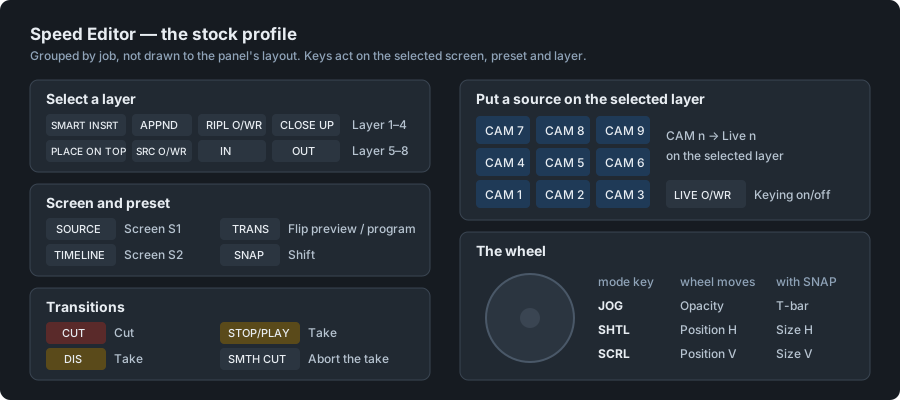
The wheel has the same soft pickup as a MIDI fader, and the panel’s activity list shows each write it made. The panel only talks after a handshake with the app, which is renewed before it lapses; if a renewal fails the panel goes quiet and the page says so, then tries again. Unplug it and plug it back in and it is found and answered again by itself.
⚠️ Preview. Proven on a real panel over USB on macOS against the simulator: CUT, the CAM keys, the wheel, the battery level and unplugging it and back. The key lamps, Bluetooth and Windows or Linux have not been tried yet. Treat the first show with one as a rehearsal.
Pixelhue panel (preview)
A Pixelhue U5, U5 Pro or U5 mini event controller, driving the switcher. Off until you turn it on in Preconfig ▸ LivePremier Plus → Pixelhue panel.
The buses are not mapped. The console is handed a model of this switcher — its screens, inputs and memories — and labels, lights and pages its own keys from it; what comes back is what the operator meant: select screen S2, put input 2 on the selected layer, take. So there is nothing to remap when a firmware moves a key.
Everything else is, on Pixelhue Mapping — in the sidebar under Virtual RC400T, beside MIDI Mapping. It draws the console in the Virtual RC400T’s look, the buses showing what the console shows, and every function key, fader and encoder carrying what it does. Click one to change it: any key can take, cut, fade to black, step the layer, run the cue stack, recall a memory to preview or press a Companion button, among others; a fader can follow its own layer or the selected one; an encoder can move, size or fade the selected layer. Press a key on the console and it lights up on the page and opens, so you can find it. A changed control has a blue dot, and Reset puts everything back.
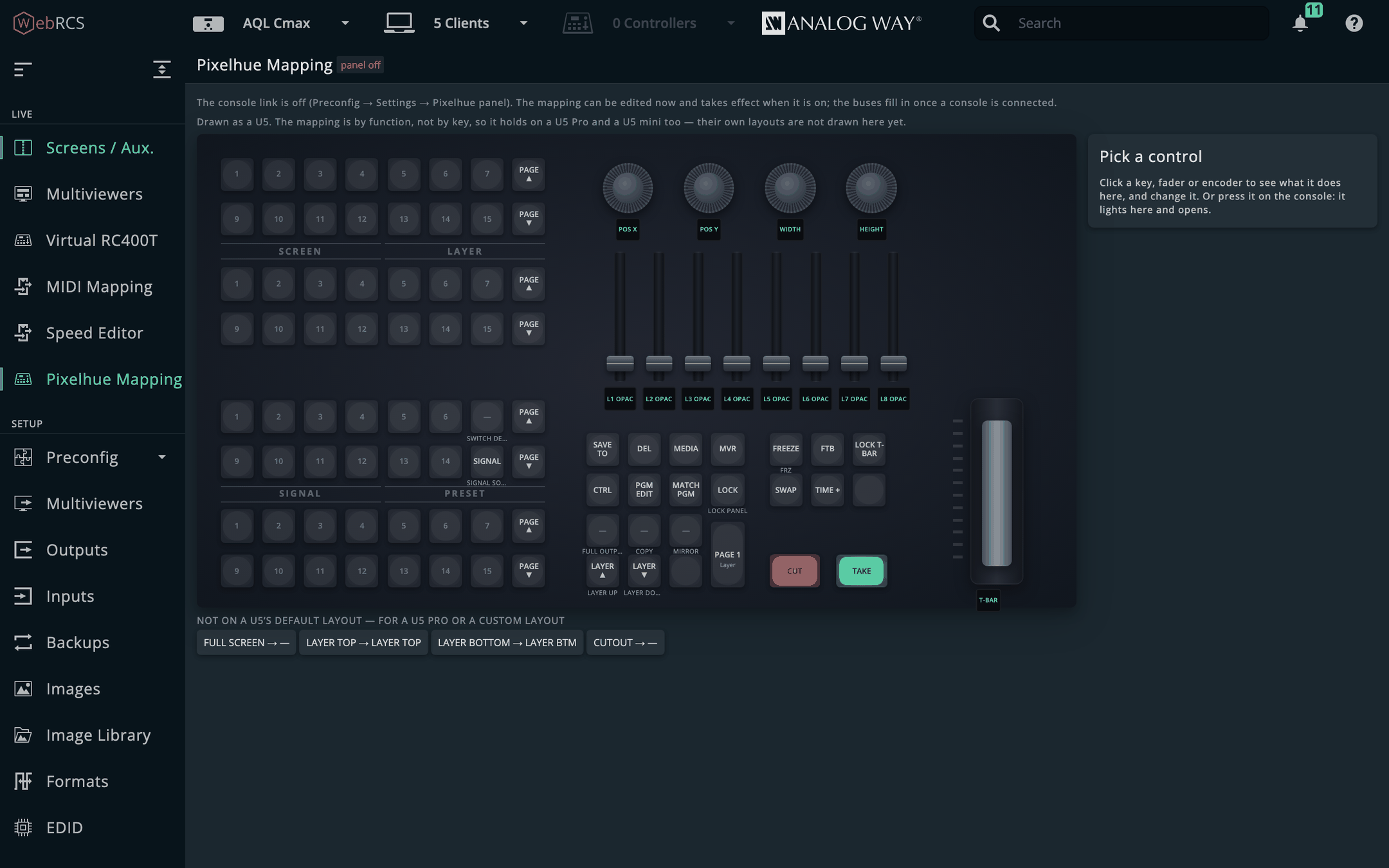
- A U5 mini answers on the network, so it is driven from wherever this app already runs.
- A U5 or U5 Pro serves its control port to itself only, so this app has to run on the console — a Windows mini-PC with a touch screen, which runs the proxied Web RCS perfectly well.
⚠️ This has never been run against a real console. It was built from the consoles’ firmware and proved against the vendor’s own control service running with no panel attached. Treat the first show with one as a rehearsal. Fade-to-black and freeze are sent on LivePremier, not yet on a Midra 4K. docs/PIXELHUE.md lists what each key does.
Thumbnail relay (preview)
Off until you switch it on in Preconfig ▸ LivePremier Plus → Plugins.
The switcher’s source thumbnails are PNGs with next to no compression — about 150 KB each on an Aquilon C, 590 KB on a Pulse 4K — and the Web RCS asks for every input’s once a second or so, whether anybody is looking at it or not. With the relay on, this app answers those requests itself: one fetch from the switcher, re-encoded as a JPEG of 10–40 KB, handed to every page that asks. The vendor’s own source cards show it unchanged.
The sources you are editing are refreshed faster; the rest are held. A thumbnail drawn in a screen or aux card on Screens / Aux. — or on the Edit page — and on screen is hot: the page refreshes it itself, twice a second by default. While any are hot, every other source is answered from the frame the relay already has until it is four seconds old. With nothing being edited, every source is treated alike.
Its card on this settings page has the five settings and what the relay is doing:
| Setting | |
|---|---|
| JPEG quality | 30–95; 70 is hard to tell from the original on a card |
| Max width | 0 keeps the switcher’s size |
| Share for | how old a frame may be and still go to a second page |
| Hot refresh | how often the edited sources refresh, 0.5–10 a second; 0 leaves them to the vendor |
| Idle hold | how old any other source may get while somebody edits; 0 turns holding off |
⚠️ Proven on the simulator only. A hot refresh faster than the switcher redraws its thumbnails fetches the same picture again.
node tools/snapshot-probe.mjs --device <address>measures how fast that is — run it against a moving source before raising Hot refresh. The switcher still sends each thumbnail it is asked for in full; the saving is largest for a page on another machine.
Multiviewer thumbnails (preview)
Off until you switch it on in Preconfig ▸ LivePremier Plus → Plugins.
The switcher already shows every source live on its multiviewer. Bring that multiviewer into the browser and this plugin cuts each source out of it and puts it into the thumbnails — the Sources panel, the screen and aux cards, this app’s own pages — many times a second, instead of the once-a-second pictures the switcher sends. It knows where each source sits from the switcher itself, so there is nothing to line up.
Choose the picture on each browser, on the plugin’s card on this settings page:
| This browser’s picture | |
|---|---|
| Off | the switcher’s own thumbnails, as always |
| Capture device | a capture card on this computer, plugged into the multiviewer output. Open the app at localhost on that computer. |
| Stream (WHEP) | the multiviewer as a stream from MediaMTX — from an encoder, or from a Midra 4K / Alta 4K’s own streamer. Works on any computer or tablet. |
| Test pattern | a made-up multiviewer, for trying it on a simulator |
Then check the picture on the card: every green box should sit exactly on a source’s picture, clear of its label. If they do not, change Picture in a widget, Sits or Trim until they do.
| Setting | |
|---|---|
| Multiviewer | which of a LivePremier’s multiviewers is on the capture |
| Picture in a widget | 16:9 or 4:3 fitted inside each widget, or the whole widget |
| Sits | where a fitted picture is — centre, top or bottom |
| Trim | taken off every edge, for a tally border drawn over the picture |
| Frames a second | how often the thumbnails are redrawn, 1–25 |
| Max width | how large a thumbnail is drawn |
Midra 4K and Alta 4K: using the switcher’s streamer. Run MediaMTX on a computer on the show
network, put its address in RTMP address (rtmp://<computer>:1935/lpp-mv), and press Stream
the multiviewer here. It asks first, writes one of the streamer’s ten destinations (10 unless you
change it), sets the multiviewer as the picture and starts it. It will not touch a streamer that is
already streaming something else — it is the unit’s only one. Set the browsers to Stream (WHEP).
The pictures run about a second behind the switcher.
If the capture stops, or a source leaves the multiviewer, its thumbnails go back to the switcher’s own within three seconds. Set a browser to Off at any time to have them all back.
⚠️ Proven on the simulator only, with the test pattern. It has never seen a real multiviewer output, and the simulators never start a stream, so starting the streamer is untested.
Arithmetic in numeric fields
Type an expression into one of Web RCS’s own numeric fields and it is evaluated when you commit — on Enter, or on leaving the field:
| typed | becomes |
|---|---|
1080-80 |
1000 |
(1920-40)/2 |
940 |
1920*2 |
3840 |
+ - * / ( ) and decimals, with the usual precedence. The result is clamped to the field’s own
declared range and rounded to its step, so a width of 9000+1000 lands on 8192 rather than being
refused.
Nothing else about the field changes: the vendor still validates it, still decides what to send, and still drags the other axis along if the aspect lock is on.
Where it applies is narrow on purpose. Only fields the vendor itself marks as numeric by
putting min, max and step on them. That excludes everything that must not be touched — labels
have no step, and neither does the transition-time field, whose 00:01.000 would be mangled by
anything treating : as arithmetic.
Opacity and zoom are deliberately excluded. They are real number inputs, and a number input
discards anything it cannot parse — after typing 1080-80 the browser reports an empty value, and
the expression is visible on screen but unreadable from script. Winning arithmetic there would mean
mutating a vendor element’s type on every focus, in a UI driving a live show. Not a good trade.
There is no eval anywhere in this path; anything the parser does not fully understand is
refused rather than guessed at.
The demo environment
npm run demobrings the whole thing up against a LivePremier Simulator, with a real Aquilon C’s resource map folded in and an example cue stack loaded, so every panel has something real to show without a switcher in the room.
The simulator has no VPU at all, so the panel against a bare one correctly reports there is nothing to draw; the demo supplies that from the recorded capture — 32 of 64 mixers fitted, 26 allocated, one screen in Optimized mode, and a staged preconfig differing in 26 mixers. Everything outside that stays the simulator’s own live state, so cues fired from the timeline really do go on the wire.
It refuses to run against anything that is not loopback. The demo splices a store subtree and seeds a cue stack, and “I thought it was the simulator” is exactly the mistake worth making impossible.
The demo’s cue stack lives in a temporary directory and is deleted on exit; your own is never touched.
Switching features off
Preconfig ▸ LivePremier Plus → Plugins lists every feature this app adds, each with a switch. Everything is on until you switch it off, except the previews that say otherwise.
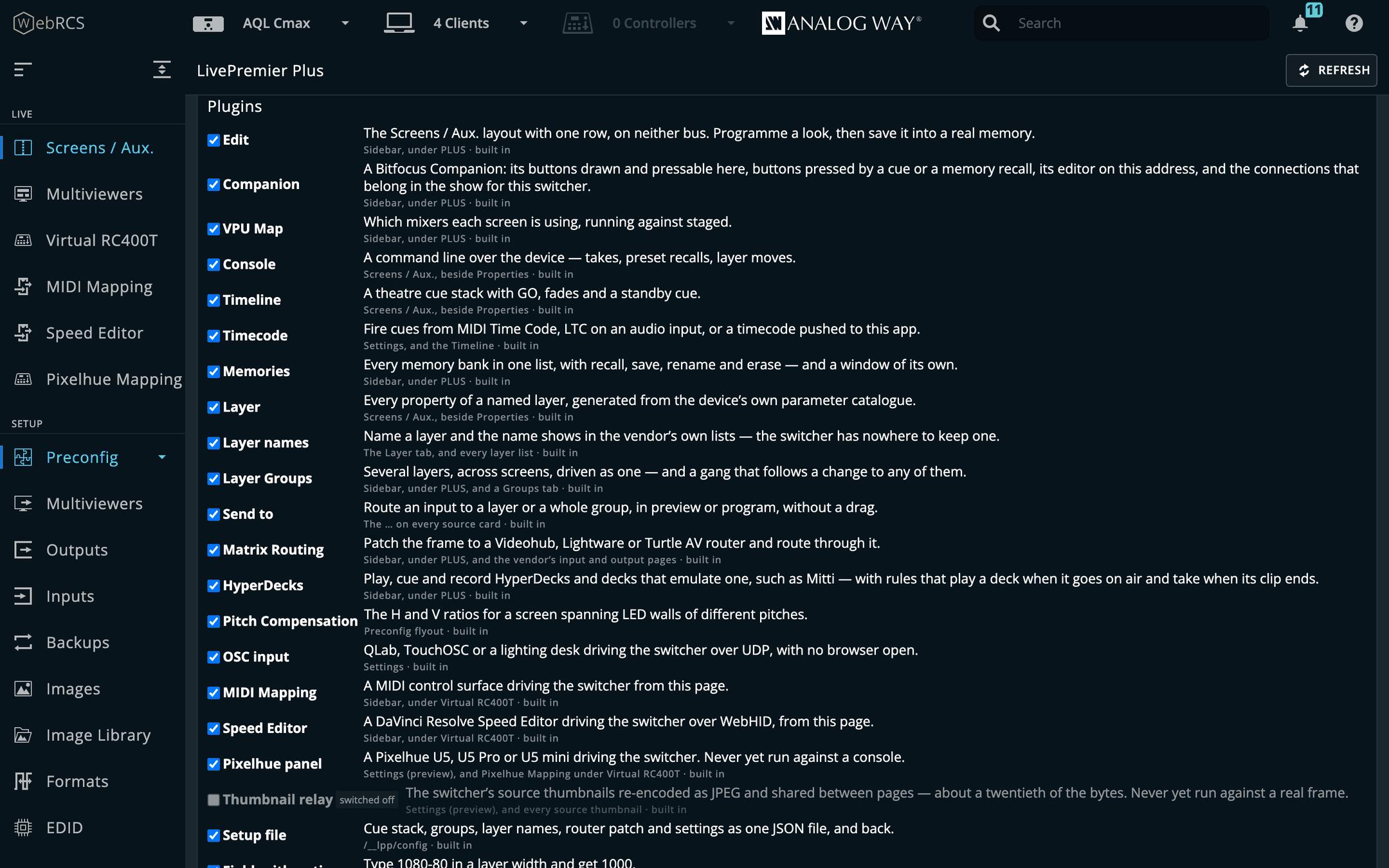
- A switched-off feature is gone, not hidden: no sidebar entry or tab, nothing added to the vendor’s page, and no background service — an OSC listener closes, router and Companion connections hang up.
- Reload the page after a change. The server side applies straight away; the page picks it up on the next load, and the card reminds you.
- Some features need others. Send to needs Layer Groups, and Timecode needs the Timeline: switch Groups off and Send to goes with it, marked needs Layer Groups, and comes back when Groups does.
- A feature’s own switch is separate. Switching OSC input on as a plugin brings its settings back; the listener itself still starts off until you tick Listen for OSC.
Adding a plugin of your own
A plugin somebody wrote — or you did — is a folder you put in the plugins folder of the app’s
data directory: ~/.livepremier-plus/plugins/ for the desktop app, /config/plugins/ in Docker.
- Copy the plugin’s folder in, and restart the app.
- In Preconfig ▸ LivePremier Plus → Plugins it is listed under Added by you, switched off.
- Tick it. You are asked to confirm, because a plugin runs inside this app with full control of it and of the switcher. Only switch on plugins you trust. Then reload the page.
Nothing in a plugin’s folder runs until you switch it on. A folder that is not a working plugin is
listed with the reason instead. The app’s source has an example to start from in
examples/plugins/hello-switcher, and docs/PLUGINS.md is the guide to writing one.
Saving and restoring your setup
A .awc from the switcher restores the processor — inputs, outputs, screens, memories.
It holds nothing about this app: your cue stack, your layer groups, the names you gave
layers, the patch to the external routers. Restore a .awc on its own onto a fresh frame
and the show comes back with no cue list.
So this app can write all of that into one file:
curl -o livepremier-plus.json 'http://127.0.0.1:8535/__lpp/config?download=1'It is plain JSON — readable, diffable, fine in a git repo. It carries which switcher it was written against, and three separate groups:
- installation — app settings (console language, OSC port and bind) and your external routers. Not tied to a switcher.
- show — the cue stack, layer groups, layer names, layer locks and Companion memory triggers. Tied to the switcher they were
built on, because they name screens and layer slots like
S1/2. - rig — the patch between the frame and the routers.
To restore, POST it back:
curl -X POST -H 'content-type: application/json' \
     --data-binary @livepremier-plus.json \
     http://127.0.0.1:8535/__lpp/config
By default that restores the show and the rig and your routers, and leaves the app settings alone — a restore should not quietly change the OSC port a lighting desk is sending to. Ask for them explicitly if you want them:
{ "doc": { … }, "sections": ["stack", "groups", "names", "patch", "settings"] }Reload any open page afterwards. The restore reaches the running app at once — the routers
are dialled, the patch and any settings you asked for are the ones in force — but a Web RCS page
that was already open still holds the cue stack, groups and names it loaded, and its next save would
put those back. The answer to the restore says "reloadPages": true when that applies.
A feature that is switched off is left out of both: its section is not written, and a file that has one reports it as skipped rather than restoring it. A plugin of your own can add a section of its own — see PLUGINS.md.
Onto a different frame. The device-keyed parts land under whichever switcher this app
is currently pointed at, so failing over to a backup frame at another address is just:
point the app at the backup, then POST the file. Add "device": "192.168.2.141" to send it
somewhere else again. To see what a file would do before doing it, POST it to
/__lpp/config/inspect.
Both halves in one file. Showbook
keeps this file beside the .awc for the same show and exports the pair as one
.showbook bundle — or, if you want a single file you can restore straight from the
switcher’s own Web RCS, it can put this configuration inside the .awc. The switcher
accepts it and ignores it; this app reads it back out. Note the switcher does not keep it:
a .awc you export from Web RCS afterwards will not contain it.
If something is wrong
| Symptom | Cause |
|---|---|
| No panels in Web RCS | You opened the switcher’s address directly. Go through the proxy. |
| MIDI does nothing | Same cause — Web MIDI needs a secure context, which loopback is and a LAN address is not. |
| A fader does not move anything | Soft pickup. Sweep it through the current value. |
| The Speed Editor does nothing | DaVinci Resolve is still running, or the panel is plugged into a different machine from the one the app runs on, or another page is driving it (Take over), or the device host is not running (see the Device host card in Preconfig ▸ LivePremier Plus), or this is the Docker image, which has no USB. |
| A console command means the wrong thing | The grammar is mynah’s; the fix is there. |
| Arithmetic does not work in a field | It is not one the vendor marks numeric — opacity and zoom are deliberately excluded. |
| The VPU panel says there is nothing to draw | A simulator has no VPU. That is correct, not a failure. |
| The demo refuses to start | It only runs against loopback, on purpose. |